Help
Setting up Brevo.
Add your domain in Brevo, paste one API key into Newsletter Sender, and you are ready to send. Setup takes about 10 minutes, most of which is simply waiting for DNS records to propagate.
1Before you start
- A Brevo account: sign up at brevo.com if you haven't already.
- Your sender address: check your From address (such as
news@yourdomain.com) in Newsletter Sender under Settings → Your company. Brevo must be set up for this address's domain.
2Add and verify your domain in Brevo
- In Brevo, open Senders, Domains & Dedicated IPs, then Domains and click Add a domain. Use the domain your newsletters come from.
- Brevo shows the records to add: a Brevo code TXT record, DKIM and DMARC. Add them where your domain's DNS is (see the tips below).
- Click Authenticate this email domain.
- If your DNS is on Cloudflare: go to DNS → Records → Add record. Set any CNAME records to DNS only (grey cloud), not Proxied (orange cloud), or Brevo can't verify them.
- If your DNS is elsewhere: copy each name and value into your DNS host's dashboard (such as GoDaddy or Namecheap).
DNS records typically take effect within a few minutes, though some hosts take up to a few hours.
3Make an API key
- Open your name at the top right, then SMTP & API and the API Keys tab.
- Click Generate a new API key, name it
Newsletter Senderand copy it. Brevo only shows it once.
4Connect Brevo to Newsletter Sender
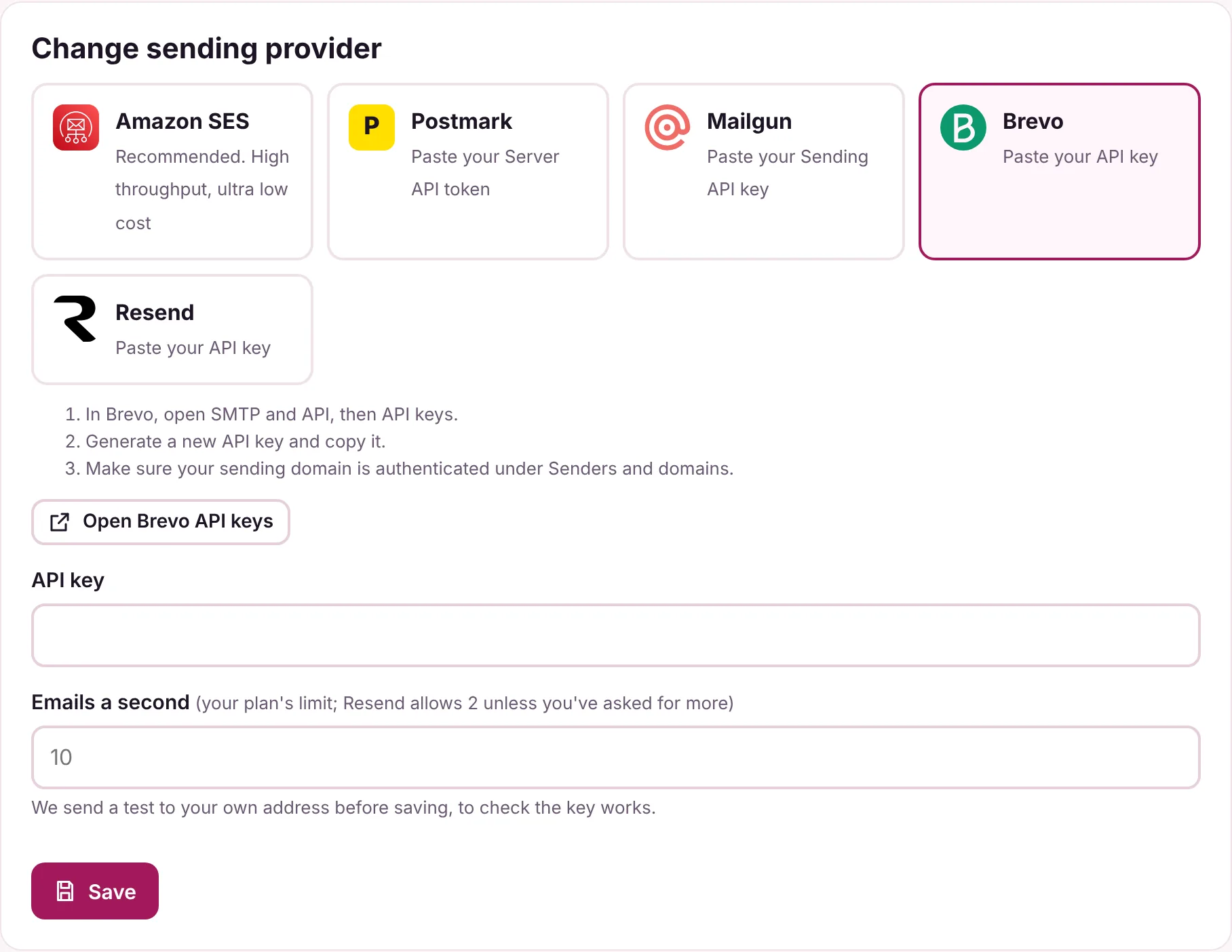
- In Newsletter Sender, go to Settings → Sending and select Brevo.
- Paste the key into API key.
- (Optional) Sending rate: enter your account's limit under Emails per second. Leave it blank to use the default of 10 a second.
- Click Save.
Newsletter Sender checks the API key with Brevo and sends a test email to your own address. Once it works, your API key is encrypted inside your own Cloudflare account and hidden from view.
5Automatic bounce and complaint tracking
When you click Save, Newsletter Sender uses your API key to add its webhook for you.
This means every hard bounce and spam complaint comes straight back to Newsletter Sender, and those contacts are never emailed again. Once it's active, Settings → Sending shows a green tick.
If the webhook couldn't be added automatically
The page shows an Add it for me button to try again, alongside the webhook address to add yourself:
- In Brevo, open Transactional → Settings → Webhooks and add a webhook with the address. Tick Hard bounce, Soft bounce, Invalid email and Complaint.